How to Compress Large Video Files Without Losing Quality
Large video files create storage, sharing, and upload problems. This guide explains the right way to compress video without visible quality loss.

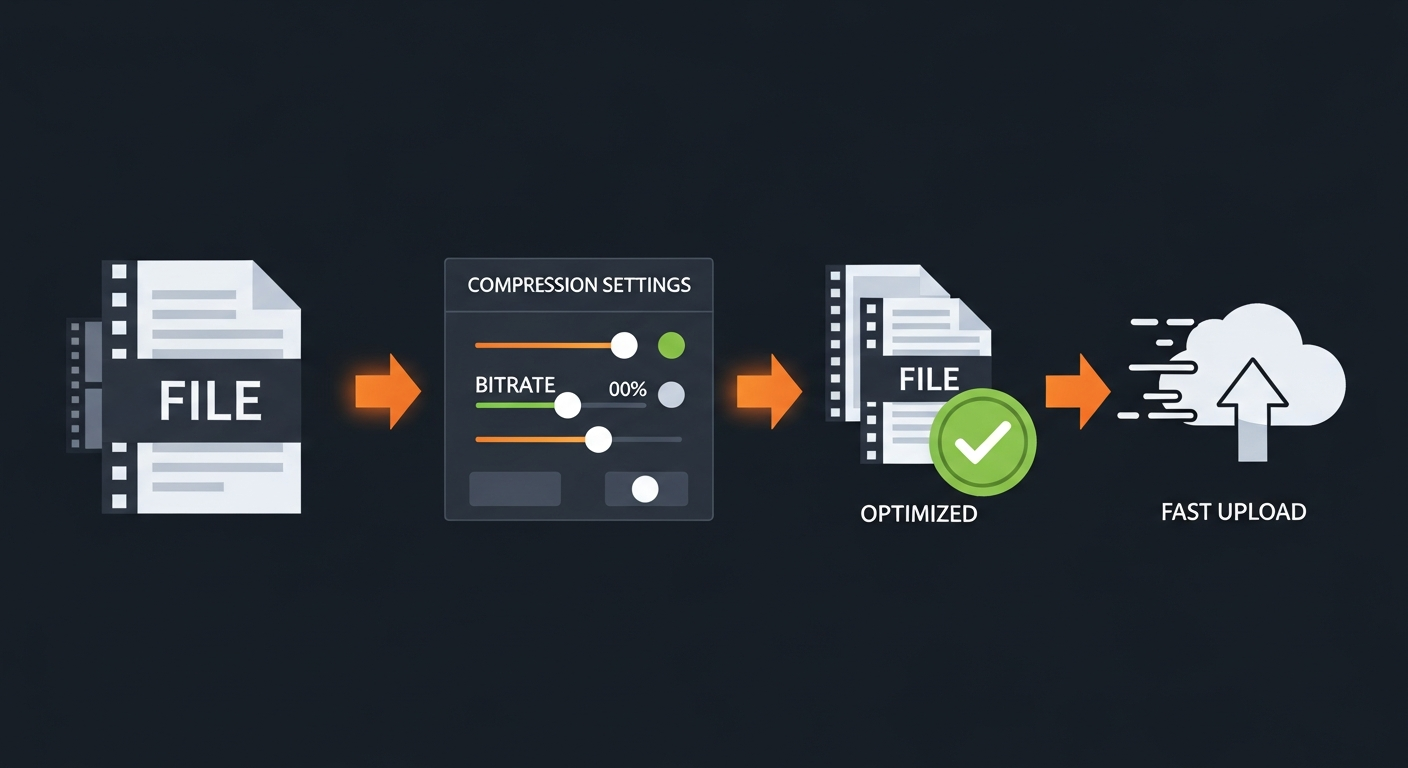
Understanding Why Video Files Are Large
Raw video files contain enormous amounts of data — a 10-minute 4K ProRes recording can easily exceed 50GB. Modern video editing workflows use these high-quality source files during editing to preserve maximum quality. The large file you're trying to compress is probably the result of a camera recording at high bitrate, or an uncompressed export from your editing software.
Codec Choice Is the Most Important Decision
The codec determines how video data is compressed. H.264 is the most universally compatible modern codec and delivers excellent quality-to-file-size ratios. H.265 (HEVC) compresses files roughly 40% smaller than H.264 at equivalent visual quality — but not all devices and platforms support it. For YouTube and web delivery, H.264 at appropriate bitrate settings is the safest choice. For archiving, H.265 saves significant storage without quality sacrifice.
Using HandBrake for Free Compression
HandBrake is the most powerful free video compression tool. For YouTube uploads, use the built-in "YouTube HQ 1080p30" or "YouTube HQ 2160p60 4K" presets — these are optimized for YouTube's encoding recommendations. For general compression, select H.264 codec, Constant Quality RF 18–22 (lower RF = higher quality, larger file), and AAC stereo audio at 192kbps. This produces excellent results for most web delivery scenarios.
Target Bitrate vs Constant Quality
HandBrake offers two primary compression approaches. Constant Quality (CQ/RF mode) targets a specific visual quality level and adjusts bitrate based on scene complexity — simpler scenes get lower bitrate, complex scenes get higher. Average Bitrate mode targets a specific file size regardless of content. For web delivery where consistent visual quality matters more than exact file size, Constant Quality RF 18–22 is the better choice.
What Not to Do: Compression Mistakes
Don't double-compress unnecessarily — each round of lossy compression degrades quality slightly. Don't compress a video that's already been exported for delivery (e.g., a YouTube download) and re-upload it as a new source. Don't target extreme compression ratios — a 90% file size reduction will produce visible quality degradation. For standard YouTube delivery, 60–75% file size reduction from raw source is achievable with excellent visual quality.
Frequently Asked Questions
Common questions about this software and category.