Screen Recording Tools
In-depth reviews, side-by-side comparisons, and expert guides covering the best screen recording for content creators.
Top Guides in This Category
What Are Screen Recording Tools?
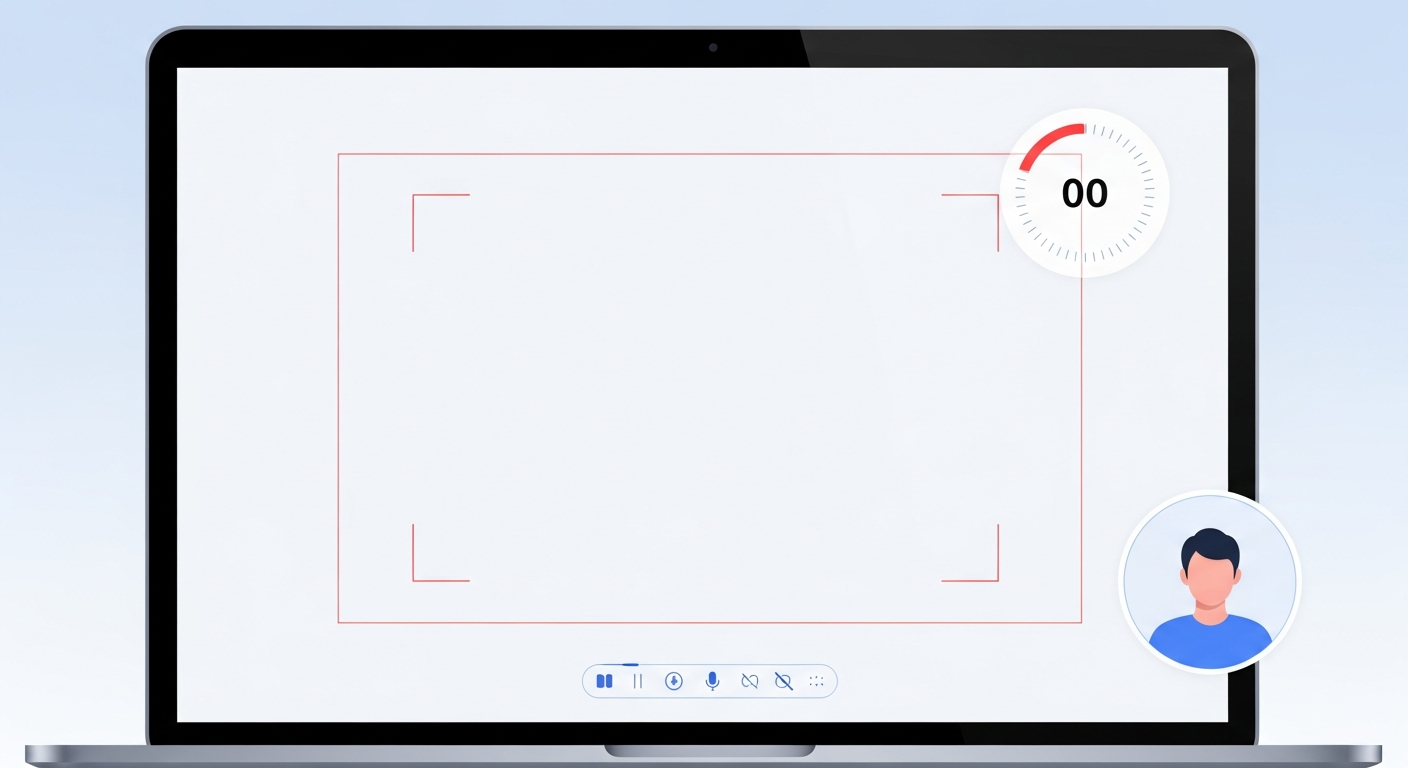
Screen recording tools capture everything displayed on your monitor and save it as a video file. They're used for software tutorials, online course lessons, bug reports, code walkthroughs, gameplay capture, remote team communication, sales demos, and any situation where showing is more effective than describing. Most modern screen recorders also support simultaneous webcam recording, creating a picture-in-picture (PiP) view that adds a human presence to otherwise static screencasts.
The category has evolved significantly from simple capture utilities into full communication platforms. Tools like Loom and Riverside blur the line between screen recording and async video messaging — Loom, for example, functions primarily as a team communication tool that happens to record screens, while Riverside prioritizes studio-quality remote recording for podcast and video content creation.
Who Uses Screen Recording Software?
- Tutorial and course creators building software walkthroughs, coding lessons, and educational content
- Remote teams using async video to replace meetings, explain bugs, and share feedback
- Developers documenting features, reporting bugs, and creating technical walkthroughs
- Customer success and sales teams creating personalized product demos and onboarding videos
- Gamers and streamers capturing gameplay for YouTube or Twitch content
- Educators recording lectures and creating supplemental video content
Key Features to Look For
- Capture quality — 1080p minimum, with 4K and 60fps for gaming and high-quality tutorial content
- Webcam integration — simultaneous webcam recording with flexible PiP sizing and positioning
- Audio options — separate recording tracks for microphone, system audio, and webcam audio
- Editing capabilities — basic trimming, captions, and annotation tools without exporting to a separate editor
- Sharing and hosting — many tools host the recording and provide a shareable link rather than requiring local download
- Recording limits — free plans often cap recording length or number of recordings per month
- Platform support — Mac vs. Windows availability, browser extensions, and mobile recording options
Beginner vs. Advanced Screen Recording Tools
For simple, quick screen recordings — demos, bug reports, async team updates — Loom's browser extension and desktop app are the easiest entry point. Hit record, capture what you need, stop, and the shareable link is immediately available. There are no settings to configure for basic use.
For professional tutorial production or course creation, ScreenPal (formerly Screencast-O-Matic) and OBS Studio offer more granular control: scheduled recordings, annotation tools, green screen removal, and hardware encoding options. OBS is free and highly capable but requires significant setup time — it's better suited to advanced users comfortable with technical configuration.
Local vs. Cloud Recording
Local recording tools capture video files directly to your storage. This is essential for high-quality gaming capture (where upload bandwidth is a bottleneck), offline work, or when you need the raw file for editing in a separate video editor before sharing. OBS, ScreenPal, and most traditional screen recorders save locally by default.
Cloud-first tools like Loom record locally but immediately upload and host the recording, providing a shareable link within seconds of stopping. Riverside records locally per speaker with lossless quality (avoiding the quality degradation of compressed video streaming) and then uploads the files for post-production. The cloud approach is far more convenient for team communication use cases where sharing speed matters more than file ownership.
Pricing Models
- Free with limits: Loom free (5-minute cap per recording), ScreenPal free (15-minute cap, watermark on exports)
- Freemium: Riverside free (2 hours recording/month), ScreenPal Solo at $3/month
- Subscription: Loom Business ($12.50/month per user), Riverside Standard ($15/month)
- Lifetime/one-time: Some tools like Camtasia offer perpetual licensing for buyers who prefer no ongoing costs
Common Mistakes When Choosing a Screen Recorder
- Choosing a tool optimized for team communication (Loom) when you need high-quality course content (where ScreenPal or Camtasia are better fits)
- Ignoring audio quality — poor microphone audio in tutorial videos dramatically reduces perceived professionalism
- Not testing the recording on a lower-end machine before committing — screen recording is CPU-intensive and can cause lag on older hardware
- Overlooking storage and hosting — some tools provide unlimited cloud hosting; others require you to manage your own storage
Future Trends in Screen Recording
AI-generated captions for screencasts are now standard, dramatically improving accessibility and searchability. Eye-tracking simulation (simulated zoom-in on cursor activity) is appearing in more tools to keep viewer attention on what matters. AI-powered background replacement in webcam feeds has matured significantly, enabling professional-looking recordings from home offices without physical green screens. Async-first team communication tools that incorporate screen recording as a core feature — not just an add-on — will continue to challenge synchronous meeting culture in distributed work environments.
Featured Software in This Category
Our editors have personally tested and scored each of these tools. Ratings are based on features, ease of use, pricing value, and real-world creator workflows.
ScreenPal
Free / $4/mo Deluxe
Affordable screen recording and video editing solution designed for educators, trainers, and tutorial creators.
Best for: Educators, trainers, and tutorial creators who need basic recording and hosting on a budget
Loom
Free / $12.50/mo Business
Video messaging tool for async communication that lets you record and instantly share screen and webcam recordings.
Best for: Remote teams, async communicators, and anyone replacing long email threads with quick video messages
Riverside
Free / $19/mo Standard
Professional remote podcast and video recording studio that records each participant locally for uncompressed studio-quality output.
Best for: Podcast hosts, interviewers, and creators who record remote guests and need broadcast-quality audio and video
How We Review Software
Best Software Roundups
Our comprehensive best-of guides rank the top tools in each sub-category based on hands-on testing.
Software Comparisons
Can't decide between two tools? Our head-to-head comparisons break down every key difference to help you choose.
Helpful Guides
Practical step-by-step guides to help you get the most out of your tools and make smarter purchasing decisions.
How to Pick the Right Screen Recorder: What Matters and What Doesn't
Screen recorders vary wildly in features, quality, and price. This guide explains what to actually look for — and what's just marketing noise.
The Best Software Stack for Beginner Creators in 2026
You don't need to spend thousands on tools to create professional content. This guide builds the complete beginner creator software stack with mostly free options.
Frequently Asked Questions
Common questions about screen recording answered by our editorial team.
Frequently Asked Questions
Common questions about this software and category.