File Conversion Tools
In-depth reviews, side-by-side comparisons, and expert guides covering the best file conversion for content creators.
Top Guides in This Category
What Are File Conversion Tools?
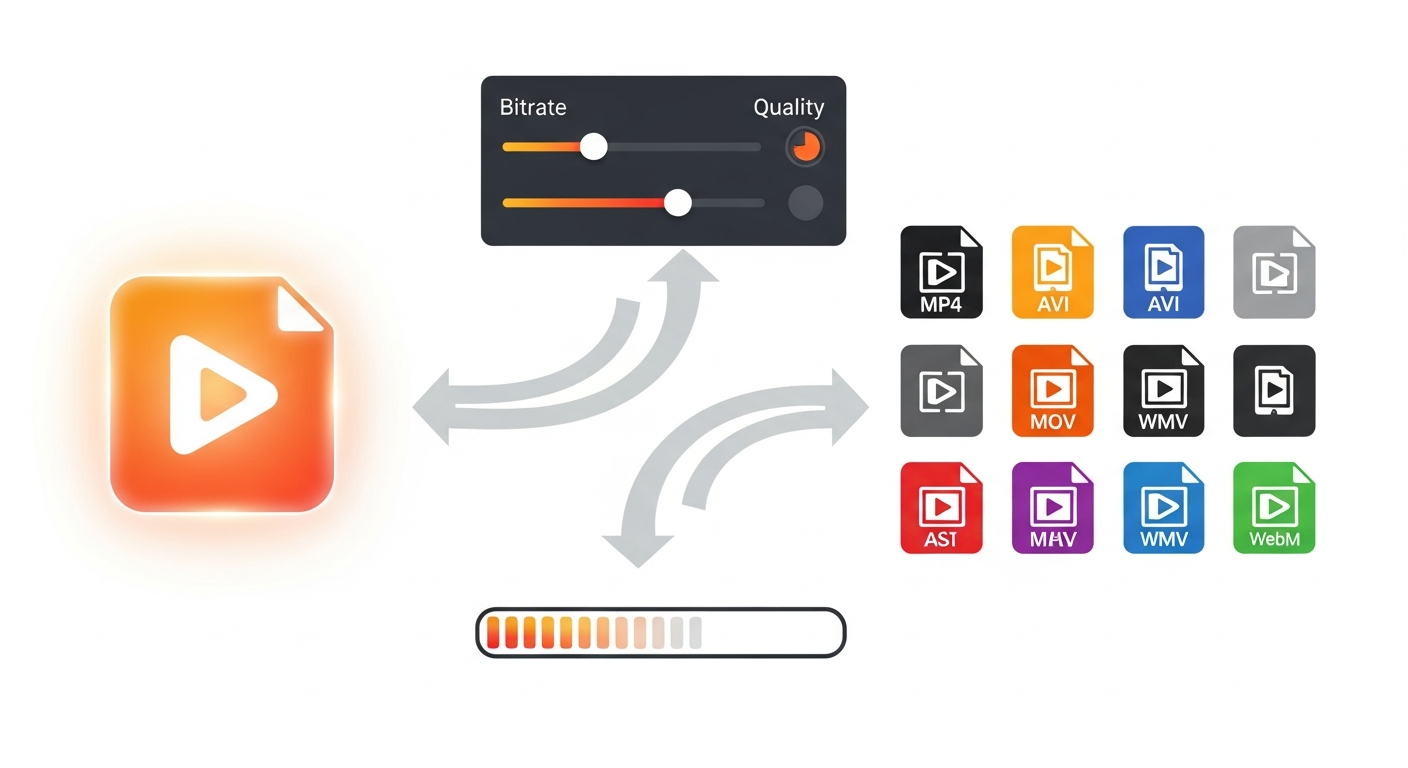
File conversion tools transform media files from one format to another. For creators, the most common use is converting video files between formats like MP4, MOV, AVI, MKV, and WebM — or compressing large video files to reduce size while preserving acceptable quality. These tools also handle audio format conversion (MP3, WAV, FLAC, AAC), image batch conversion, and DVD/Blu-ray ripping in regions where that's permitted.
While basic conversion functions exist in most video editors, dedicated conversion tools offer faster batch processing, more format support, hardware-accelerated encoding, and better control over quality settings — making them valuable for creators who regularly need to transcode files for different platforms, clients, or archiving purposes.
Who Needs Video and File Conversion Software?
- Content creators preparing footage for different platform requirements (YouTube, Instagram, TikTok all have different optimal specs)
- Videographers and editors working with client footage in various raw and professional formats
- Podcasters and audio creators converting between audio formats for different distribution channels
- Educators and corporate teams compressing training videos for LMS upload size limits
- Archivists and home users converting DVD libraries and home videos to modern playback formats
- Developers and technical users needing batch processing and command-line conversion for automated workflows
Key Features to Look For
- Format support — the number of input and output formats supported, including newer codecs like H.265/HEVC and AV1
- Conversion speed — hardware-accelerated encoding via GPU (NVIDIA NVENC, AMD VCE, Intel Quick Sync) dramatically speeds up conversion
- Batch processing — converting multiple files simultaneously saves significant time for high-volume workflows
- Quality control — adjustable bitrate, resolution scaling, and quality presets
- Compression efficiency — H.265/HEVC offers roughly 50% smaller files than H.264 at equivalent quality
- Additional features — some tools add basic editing, thumbnail extraction, subtitle embedding, and watermark tools
Free vs. Paid Converters
HandBrake is the most widely used free video converter, and for the specific use case it covers — converting and compressing video files — it's genuinely excellent. It supports H.264 and H.265 encoding, hardware acceleration, and has been maintained reliably since 2003. Its limitation is breadth: no batch queue with different settings per file, minimal additional features beyond conversion, and a less intuitive interface for beginners.
Paid tools like Wondershare UniConverter add a broader feature set around the core conversion capability: batch processing with per-file settings, a built-in video editor, screen recorder, DVD burner, and streaming download. For creators who need a multi-function utility beyond pure format conversion, the additional features may justify the cost. For users who need only reliable conversion, HandBrake is difficult to beat at its price point of free.
Understanding Codec and Format Choices
- MP4 (H.264) — the universal standard; works on every platform, device, and service
- MP4 (H.265/HEVC) — roughly half the file size of H.264 at equivalent quality; increasingly well-supported
- WebM (VP9/AV1) — efficient open-source format preferred by some web platforms
- MOV — Apple's container format; preferred for high-quality archiving and Final Cut Pro workflows
- MKV — flexible container supporting multiple audio and subtitle tracks; common for downloaded media
For uploading to platforms like YouTube, Instagram, or TikTok, H.264 MP4 remains the most reliable choice for consistent processing and display quality across all platforms.
Common Mistakes When Choosing Conversion Tools
- Converting already-compressed footage multiple times — each generation of compression reduces quality; start from the highest quality source available
- Ignoring hardware acceleration settings — GPU-accelerated encoding can be 5–10× faster than CPU-only conversion
- Setting bitrate too low and wondering why quality suffers — higher resolution requires proportionally higher bitrate to maintain quality
- Downloading converters from unofficial sources — some are bundled with malware; use official tool websites only
- Over-compressing to save storage — extremely low bitrate settings produce obvious compression artifacts that damage professional credibility
Future Trends in File Conversion
The AV1 codec is gaining rapid adoption as a next-generation standard that outperforms both H.264 and H.265 in compression efficiency at equivalent quality. YouTube, Netflix, and Google have committed to AV1 distribution, and hardware encoders for AV1 are appearing in newer GPUs and CPUs. Cloud-based conversion — submitting files to remote servers for processing without using local CPU resources — is becoming a practical option for large-scale batch conversion workflows. AI-powered upscaling (converting SD content to HD through neural network interpolation) is the most exciting frontier, though it remains primarily in specialized tools rather than consumer-level converters.
Featured Software in This Category
Our editors have personally tested and scored each of these tools. Ratings are based on features, ease of use, pricing value, and real-world creator workflows.
Wondershare UniConverter
$29.99/yr Individual
Feature-rich desktop video converter and toolkit supporting 1000+ formats with GPU-accelerated batch conversion.
Best for: Content creators and businesses needing a reliable all-in-one desktop converter with compression and editing tools
HandBrake
Free (Open Source)
Free open-source video transcoder with powerful H.264/H.265 encoding that gives technical users full control over compression.
Best for: Tech-savvy creators who need a free, powerful video transcoder with precise control over encoding settings
How We Review Software
Best Software Roundups
Our comprehensive best-of guides rank the top tools in each sub-category based on hands-on testing.
Software Comparisons
Can't decide between two tools? Our head-to-head comparisons break down every key difference to help you choose.
Helpful Guides
Practical step-by-step guides to help you get the most out of your tools and make smarter purchasing decisions.
How to Compress Large Video Files Without Losing Quality
Large video files create storage, sharing, and upload problems. This guide explains the right way to compress video without visible quality loss.
How to Organize Your Downloaded Media Files Like a Pro
Poor file organization costs creators hours every week. This guide teaches a practical system for organizing video, audio, and project files that scales as your library grows.
Frequently Asked Questions
Common questions about file conversion answered by our editorial team.
Frequently Asked Questions
Common questions about this software and category.