Canva Video Editor Review 2026: Best for Designers Who Also Need Video?
Canva Video Editor brings video creation into the world's most popular design platform. For over 150 million Canva users, it offers a zero-friction way to add motion to their content — no new tool to learn, no workflow disruption, just video editing within an interface they already know.

Why Trust This Review?
Our editorial team independently tests and evaluates every tool we recommend. We are not paid by software companies to write positive reviews. When you buy through our affiliate links, we may earn a commission — this never influences our ratings or recommendations. Read our editorial policy →
Related Guides & Category
Canva Video Editor is the best choice for designers and marketers already embedded in the Canva ecosystem. If you're creating social media graphics in Canva anyway, adding video to your workflow here is natural. As a standalone video editor, it has meaningful limitations compared to dedicated tools.
Best For
Designers and marketers already using Canva who want to add video to their content workflow
Key Features Overview
What We Like
- ✓ Seamless integration with Canva design library
- ✓ Huge template collection
- ✓ Magic Resize for different platforms
- ✓ Easy text animation tools
Room to Improve
- ✗ Not designed for complex timeline editing
- ✗ Limited fine-grained audio control
- ✗ Video export quality not always optimal
Compare Alternatives & Learn More
Canva Video in the Context of the Canva Platform
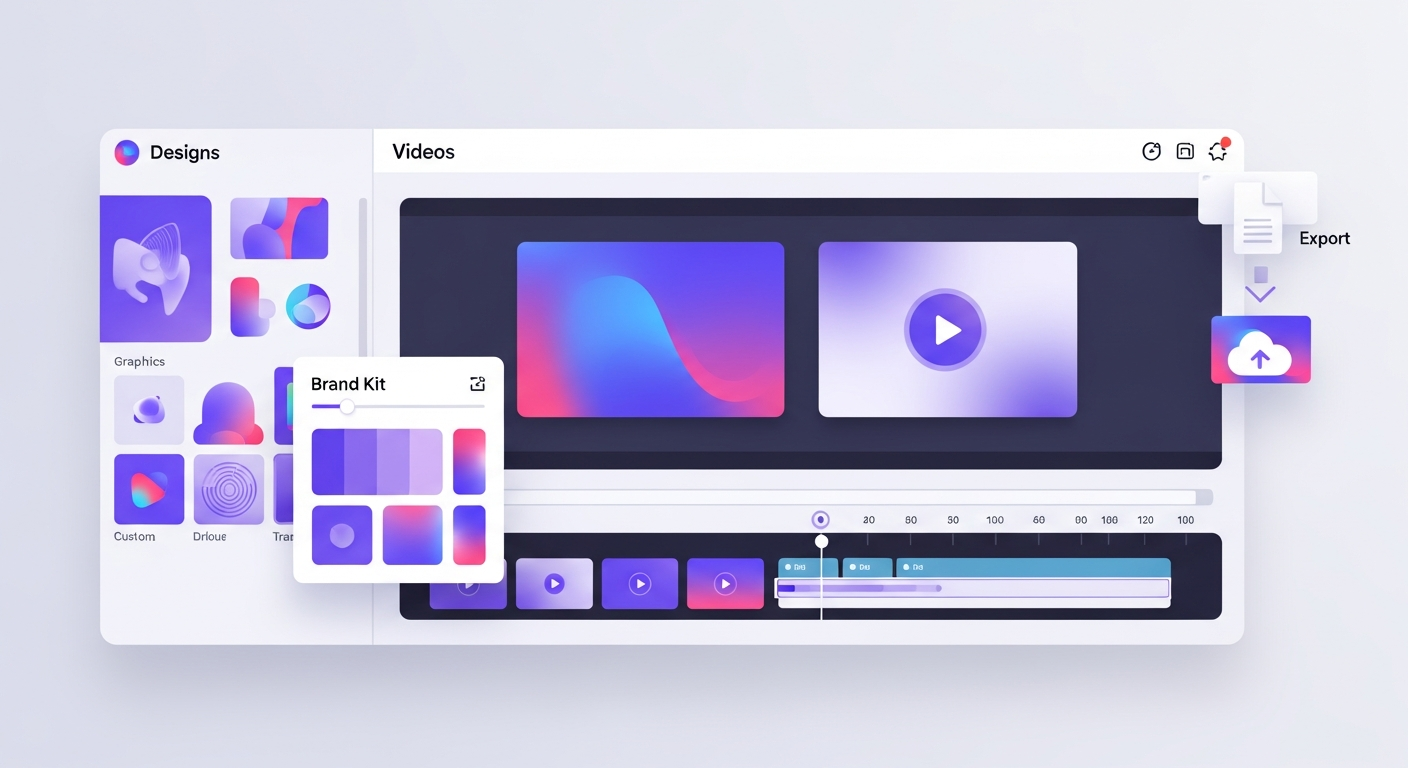
Canva Video is not a standalone product — it's a video editing mode within the broader Canva design platform. This means all of Canva's design assets — hundreds of thousands of templates, stock images, icons, brand kits, and fonts — are immediately available in your video projects. If you've built a brand identity in Canva, applying it consistently to video is a single click away.
AI Features: Magic Write, Background Remover, and Magic Resize
Canva's AI tools translate well to video. The background remover works reliably on talking head footage with clean backgrounds. Magic Resize automatically re-formats a video created for Instagram to TikTok, YouTube, or LinkedIn dimensions — preserving your design elements and repositioning them intelligently. Canva's text animation tools are polished and add production value to social content quickly.
Pricing: When Does Canva Pro Make Sense?
Canva's free plan includes basic video editing with access to a subset of templates and no brand kit features. The Pro plan at $14.99/month per user unlocks the full template library, unlimited brand kits, premium assets, and all AI tools including Magic Resize. For businesses already using Canva for design work, the per-user Pro cost covers both design and video — making it genuinely good value when considered holistically.
Money-Saving Tip
Limitations for Serious Video Creators
Canva Video's timeline editor is simplified — it's designed for designers, not video editors. You get basic clip trimming, transitions, and text overlays, but you won't find multi-track audio mixing, J/L cuts, color grading tools, or the kind of frame-level precision that long-form video editing requires. For YouTube vlogs, documentary-style content, or anything over 5 minutes, a dedicated video editor is a better choice.
Who Gets the Most Value From Canva Video?
The ideal Canva Video user is someone who already creates graphics, presentations, or social media posts in Canva and wants to add video without context-switching to a new tool. Social media managers, marketing coordinators, small business owners, and educators fit this profile well. It's also a strong choice for creating video presentations and screen-share style educational content using Canva's Presenter View feature.
Who Uses Canva Video Editor?
- Social media managers adding video to a Canva-based content workflow
- Small businesses creating product promo videos using existing Canva brand assets
- Educators building video presentations and lesson explainers
- Marketing teams producing consistent branded social video at scale
- Event organizers creating announcement and recap videos
Alternatives to Consider
Not sure this tool is the right fit? Here are the closest alternatives we've reviewed:
AI-powered browser-based video creation platform with thousands of templates designed for …
Free / $20/mo BusinessFree AI-powered video editor from ByteDance optimized for short-form content with trending…
Free / $7.99/mo ProBrowser-based video editor best known for its industry-leading auto-subtitle generation an…
Free / $18/mo ProFinal Verdict
Canva Video Editor is the best choice for designers and marketers already embedded in the Canva ecosystem. If you're creating social media graphics in Canva anyway, adding video to your workflow here is natural. As a standalone video editor, it has meaningful limitations compared to dedicated tools.
Frequently Asked Questions
Common questions about this software and category.
Related Reading
Canva Video Editor
Video creation within Canva's design platform, combining drag-and-drop design tools with video editi…
- Seamless integration with Canva design library
- Huge template collection
- Magic Resize for different platforms
Affiliate link — we may earn a commission at no extra cost to you.